

Regularly reviewing your Microsoft and OneLogin sign-in activity can help you identify unauthorized access and protect FSCJ systems and information. The following instructions explain how to review recent account activity, recognize potential warning signs, and take immediate action if you notice a sign-in, password change, multifactor authentication update, or other activity you do not recognize.
How To Verify Recent Microsoft Sign-In Activity
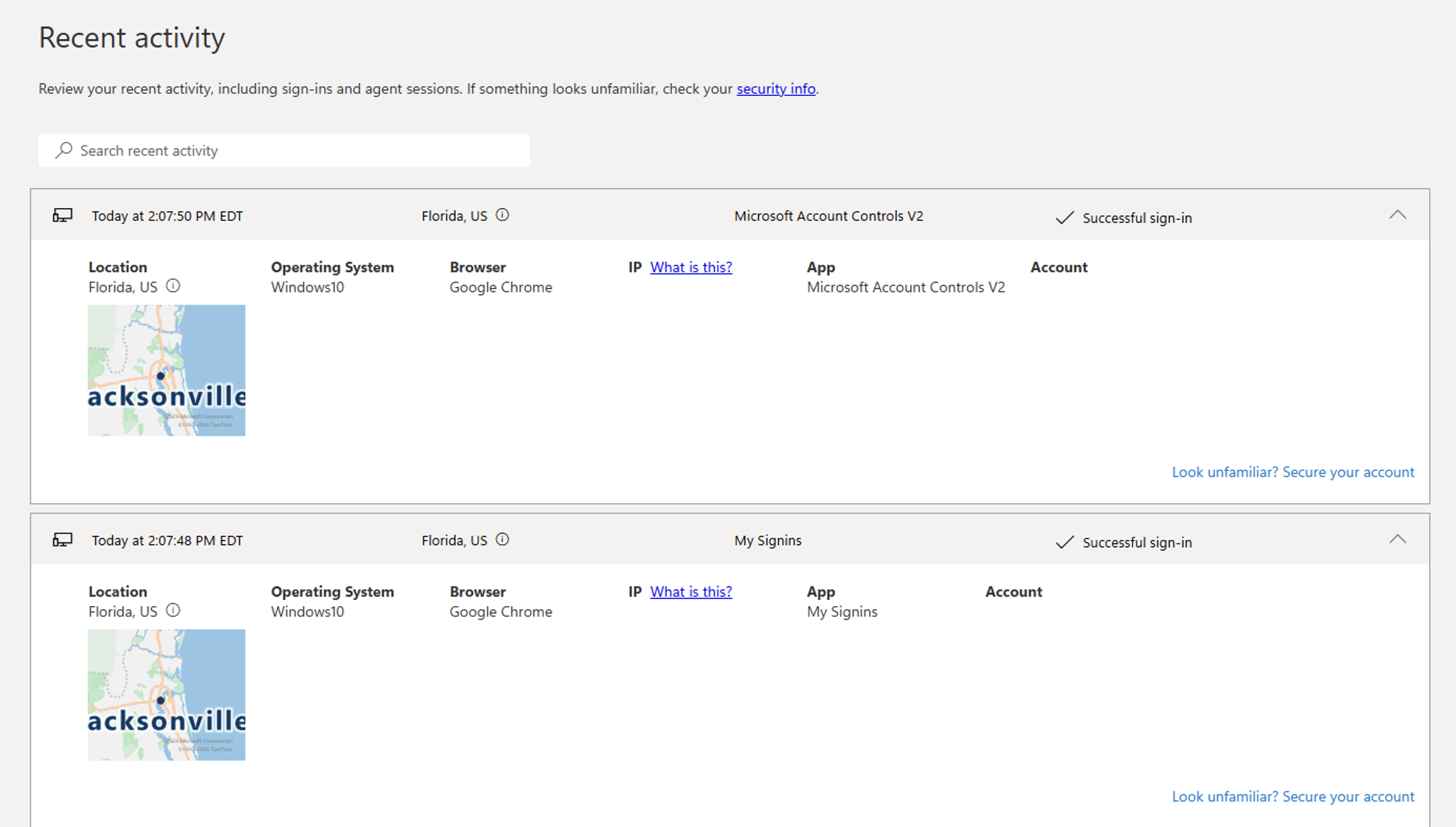
Reviewing your recent Microsoft Sign-In activity helps you confirm that your account is being used as expected. It can also help identify suspicious or unauthorized activity, such as unfamiliar sign-ins, unexpected password changes, or changes to your multifactor authentication (MFA) settings.
Regularly checking this information is an important part of protecting your account and our organization’s systems.
Go to https://mysignins.microsoft.com/recent-activity and sign in with your FSCJ e-mail and credentials.
At the Recent Activity page, review your activity.
What To Do If You Notice Suspicious Activity:
If you see an unfamiliar sign-in, password change, MFA change, or other unexpected activity:
Change your password immediately.
Verify that your registered MFA methods are correct.
Contact the Technical Service Desk and provide the date, time, and details of the suspicious activity.
Never approve any unexpected MFA prompts or sign-in requests.
How to Verify Recent OneLogin Activity
Reviewing your recent OneLogin activity helps you confirm that your account is being used as expected. It can also help identify suspicious or unauthorized activity, such as unfamiliar sign-ins, unexpected password changes, or changes to your multifactor authentication (MFA) settings.
Regularly checking this information is an important part of protecting your account and your organization’s systems.
Instructions:
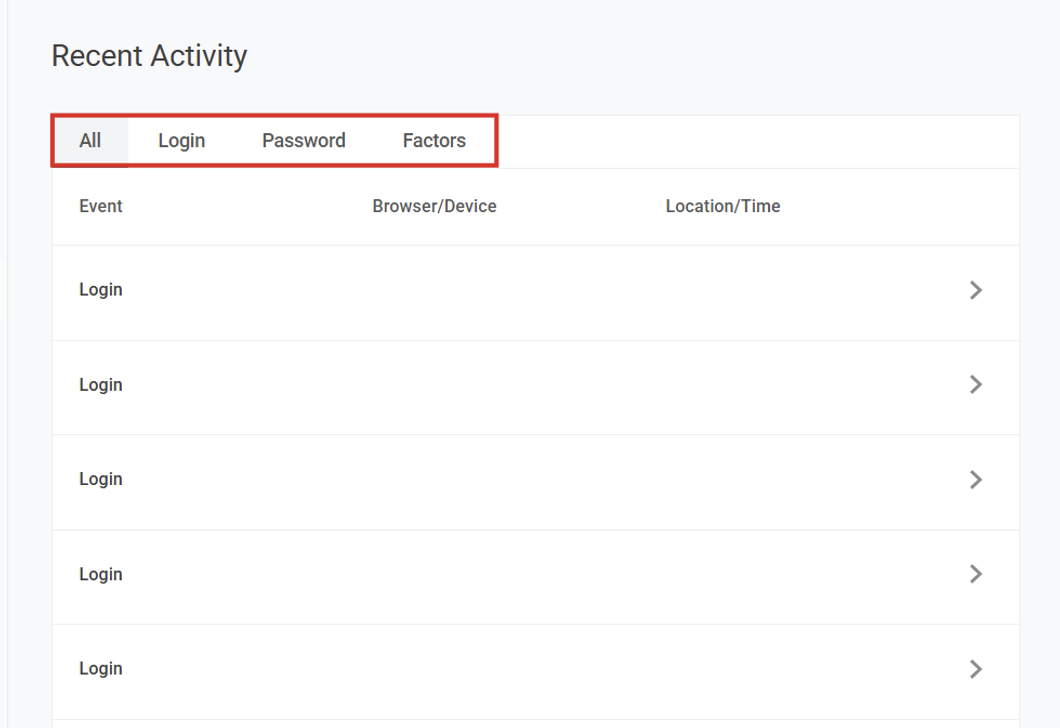
Go to https://fscj.onelogin.com and sign in with your FSCJ credentials.
In the upper-right corner of the page, select your name or profile picture.
Select Profile.
In the left navigation pane, click on Recent Activity
The Recent Activity page displays account-related events, including:
Single sign-on activity
Password changes
Security factor or MFA activity
Review the listed activity for anything you do not recognize.
What To Do If You Notice Suspicious Activity:
If you see an unfamiliar sign-in, password change, MFA change, or other unexpected activity:
Change your password immediately.
Verify that your registered MFA methods are correct.
Contact the Technical Service Desk and provide the date, time, and details of the suspicious activity.
Never approve any unexpected MFA prompts or sign-in requests.
