

Canvas has introduced a redesigned, customizable dashboard view for students. While instructors continue to experience Canvas through the standard interface, understanding how learners navigate and customize this space ensures faculty can provide better support when students ask questions about their screen layout.
How Students Access and Switch Between Views
Students enter the experience by clicking the Dashboard link in Global Navigation. From there, they have direct control over their view:
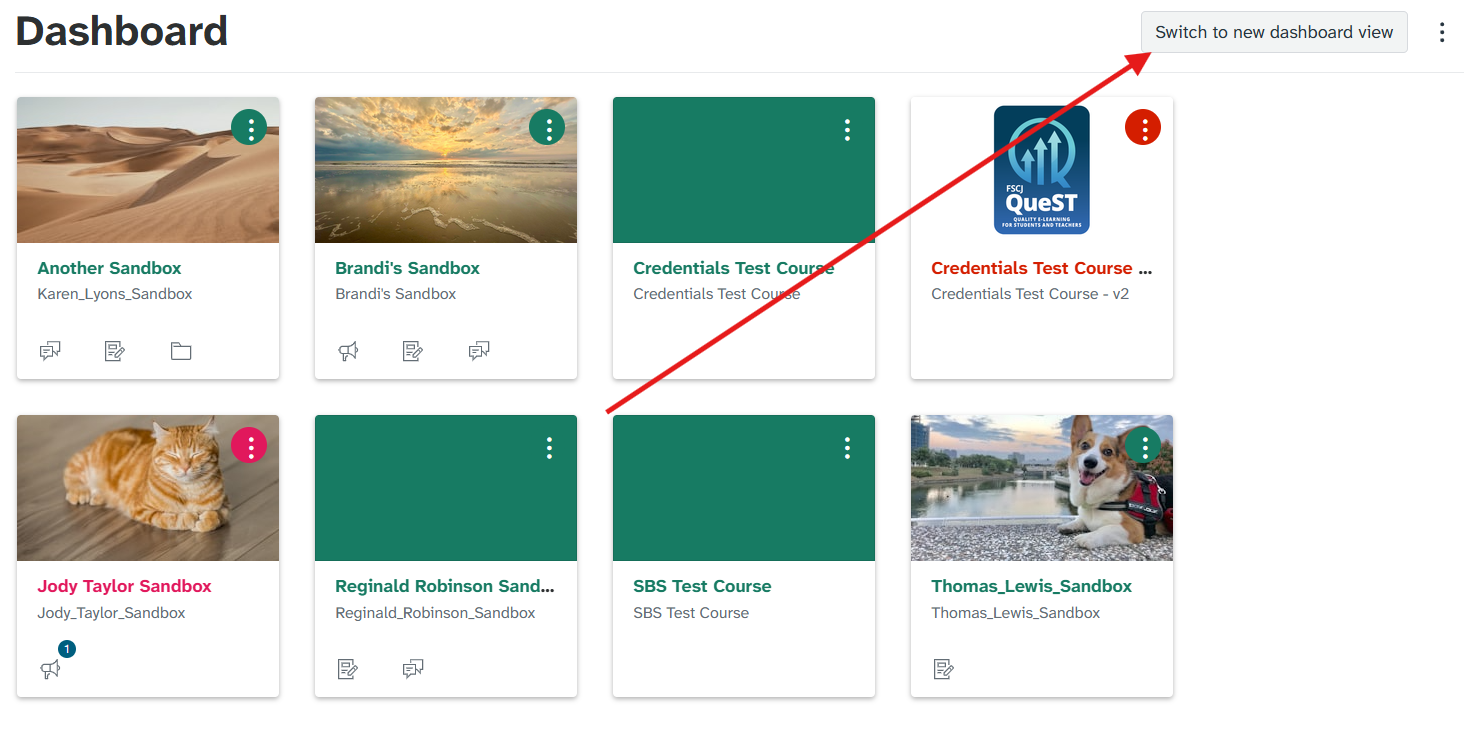
Switching Views: At the top of the screen, students can click the Switch to new dashboard view button to enter the updated workspace. If they prefer the classic layout, they can return at any time by selecting the Switch to old dashboard view button.
Providing Feedback: The interface includes a Let us know! link where learners can submit direct feedback regarding the new experience.
Browsing Courses: To see their traditional course cards, students simply click the Courses tab at the top of the page.
The Default Widgets
When students land on the Dashboard tab, four default widgets populate their screen:
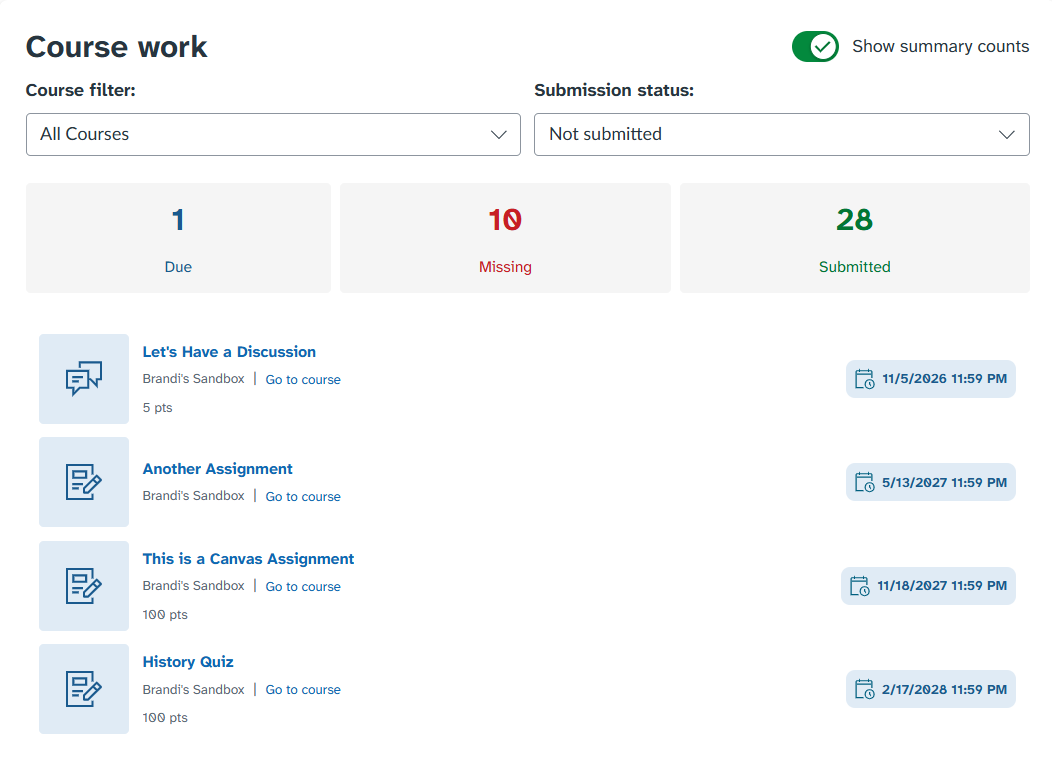
Course Work: Displays the exact count of assignments categorized as Due, Missing, or Submitted. Students can filter these results either by specific course or by submission status.
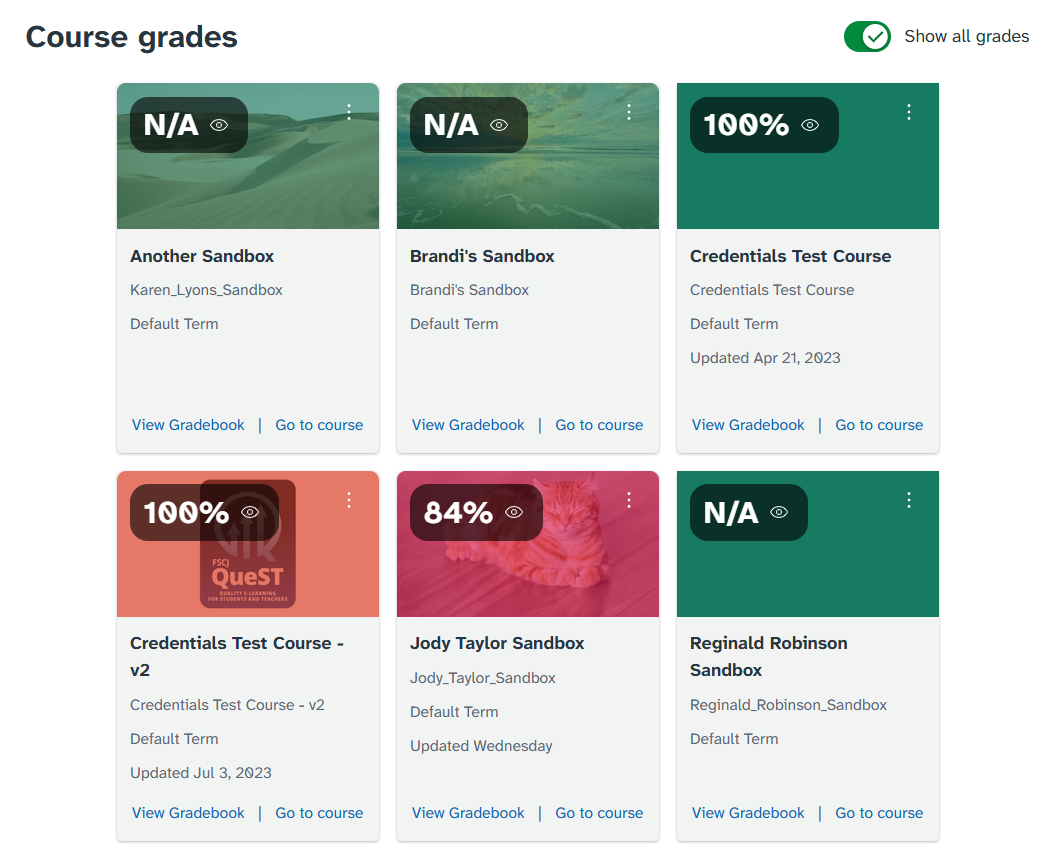
Course Grades: Displays course cards designed for quick navigation into each class. Learners have options to hide or show all grades simultaneously, toggle individual course grades on or off, jump directly to a course Grades page, or open the course homepage.
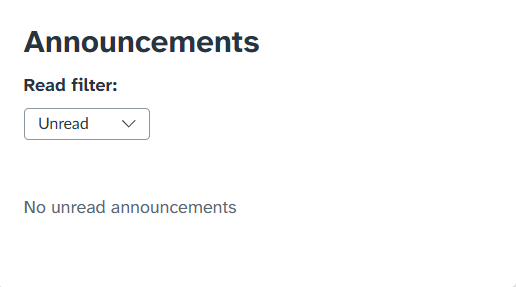
Announcements: Surfaces new course announcements with quick filters to sort by Read, Unread, or All.
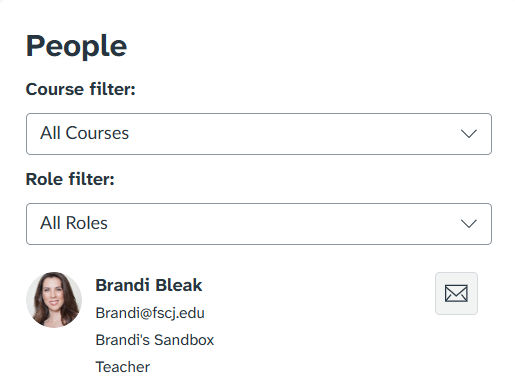
People: Enables students to filter classmates and instructors by course or role and launch Canvas Inbox messages straight from the main page.
How Students Customize Their Layout
The redesigned dashboard allows learners to personalize which widgets they see and where those tools sit on their screen:
Entering Edit Mode: The student clicks the Customize dashboard button.
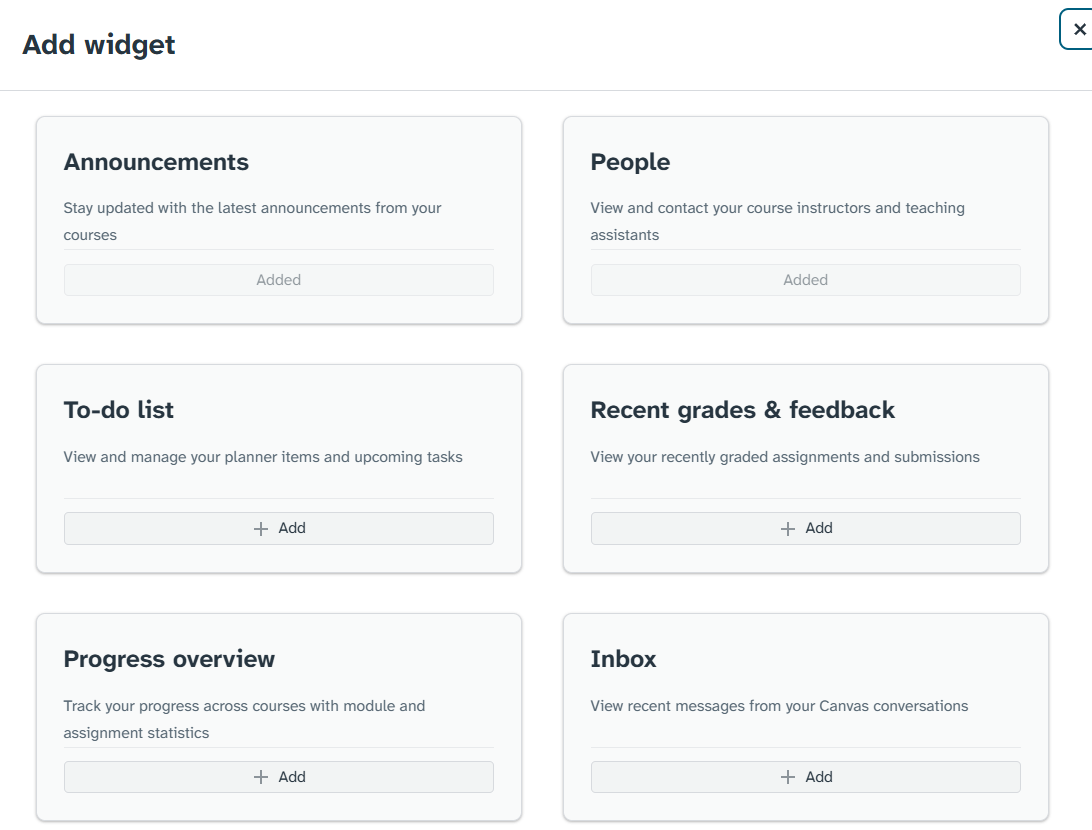
Adding Widgets: Clicking the Add widget button in any preferred section opens a menu to locate the desired tool, followed by clicking Add.
Rearranging Widgets: Students can hover over the Drag icon to drag a widget to a new position, or click the icon directly to choose a directional move option.
Removing Widgets: Selecting the Delete icon removes any unwanted widget from the screen.
Saving the Layout: Clicking Save changes locks in the personalized configuration.